WhatsApp reminders that fit your routine
Get reminders in your own style, repeat them on a schedule, or ask Oliver to prepare a supported checkout when it's time.
Your reminders don't have to sound like calendar alerts. Ask Oliver for a gentle nudge, a tiny pep talk or a little melodrama at the time you choose. You can also schedule supported shopping or metro checkout preparation, so the useful next step is ready to review—not just a message telling you to start again.
Everything starts with a request in WhatsApp. Say what should happen, when, and whether it should repeat. Check the saved confirmation; no separate Oliver app is needed.
A reminder with some personality
Tell Oliver how you want the reminder to sound. For example:
Every day at 12 pm, remind me in a melodramatic but gentle way to take my medicines as prescribed. Write the reminder in that style rather than repeating a fixed sentence.
An illustrative reminder might be: “The clock strikes twelve. A glass of water awaits. Time for your medicines, as prescribed—the next scene can wait.”
The wording is generated when the task runs, using the saved request. You can ask for a tone, language or format: encouraging, matter-of-fact, a short rhyme, or one playful sentence. That isn't a guarantee of entirely different wording every day.
Other messages you can send:
A weekday reset:
At 4 pm every weekday, give me a short, encouraging nudge to step away from my desk and stretch.
A weekly ritual:
Every Sunday at 7 pm, remind me to plan the week. Make it a tiny pep talk, not a lecture.
A one-off practical nudge:
In 45 minutes, remind me to take the laundry out.
A medication reminder does not verify that you've taken anything, monitor your health or decide a dose. Follow your prescribed instructions and use an appropriate backup alarm when timing matters.
Have a checkout ready when you need it
You can schedule the task itself, not only a reminder about it. For supported metro and Swiggy requests, Oliver can use the saved choices to check current options and prepare a checkout when the task runs, where the necessary access and details are available.
Dinner after work:
In two hours, prepare a Swiggy checkout for one masala dosa from the restaurant we chose, delivered to Home. No substitutions. Send it for me to review and pay.
Your weekday commute:
Every weekday at 8 am, prepare checkout for one Mumbai Line 2A ticket from Andheri West to Borivali West. Send it to me; don't pay automatically.
A regular grocery basket:
Every seven days, starting tomorrow at 10 am, prepare an Instamart checkout for two one-litre cartons of the milk we chose and six eggs, delivered to Home. Ask me if the exact items aren't available.
Be clear about whether you mean one future action (“in two hours”) or a repeating interval (“every seven days, starting tomorrow at 10 am”). Include the route or items, quantities, destination, substitution rules and any spending limit. Swiggy work needs the appropriate connected account; Oliver may need you to resolve a missing choice or connection before checkout can be prepared.
Each occurrence uses current availability and prices, not a reservation made when you set the schedule. A saved checkout request is not permission for automatic payment or a completed purchase. Review the actual total and details before paying. If the result needs a longer message outside WhatsApp's reply window, a scheduled update may ask you to tap Continue to see the full details.
Set a reminder
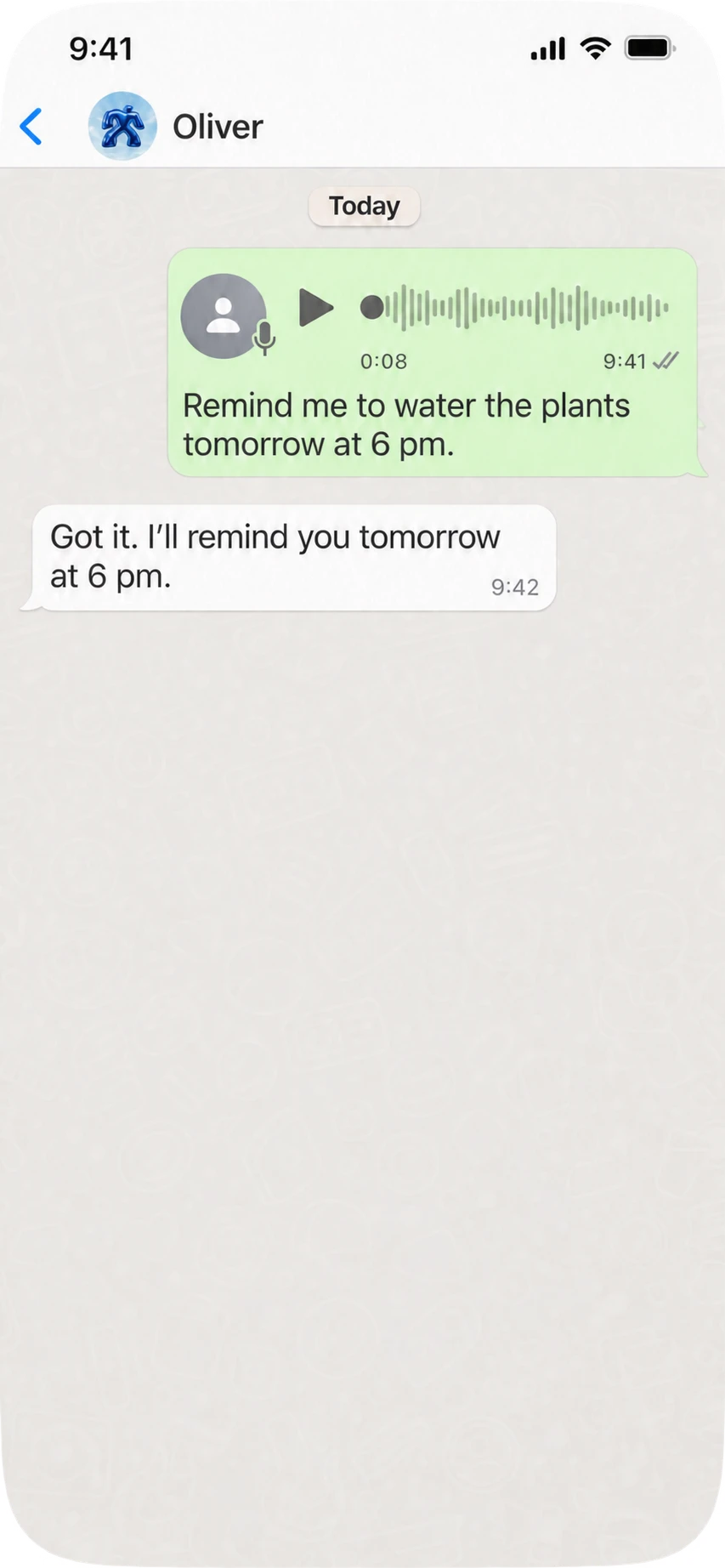
- Send the task and a future time: “Remind me to water the plants tomorrow at 6 pm.”
- Include the date or timezone when it could be ambiguous, especially while travelling. Oliver may need to clarify which time you mean.
- Check the confirmation for the task, date and time. If they're wrong, ask to correct them rather than assuming the original request was saved as intended.
You can also ask “What reminders have I set?” to check saved tasks. You don't need to keep the conversation active until a reminder is due.
Repeat, change or stop
For a regular task, include the pattern: “Remind me to water the plants every Tuesday at 6 pm.” Check the saved recurrence as well as the next time.
To change an existing reminder, identify it and say what's different: “Move my plant-watering reminder to Wednesday at 7 pm.” You can change the task, time or repeating schedule. If several reminders sound alike, give enough detail to distinguish them.
To stop a repeat, ask to cancel that reminder and check the result. An occurrence already running may still finish; cancellation stops future occurrences.
Common questions
What's the difference between a nudge and a scheduled checkout?
“Remind me to leave for work” calls for a message. “Prepare my metro checkout at 8 am” asks Oliver to do supported preparation then. For shopping or booking requests, say explicitly if you only want a text reminder and no checkout work. Neither kind of request by itself authorizes automatic payment.
Can Oliver keep reminding me until I take my medicine?
This guide describes reminders on a saved schedule, not medicine-adherence monitoring or a guarantee of repeated follow-ups until you respond. You can request a repeating schedule, but don't rely on Oliver to verify that you've taken a dose.
Does stopping a schedule cancel an order too?
No. It stops future scheduled occurrences. It does not cancel an issued ticket, placed order, existing checkout or payment. Check those separately in the relevant service.
Is delivery guaranteed at the exact second?
No. Scheduled work depends on the service, any provider involved and WhatsApp delivery. Use a dedicated alarm or another appropriate backup for something that must alert you at an exact time.
Read more about repeating schedules and changing or stopping reminders.